
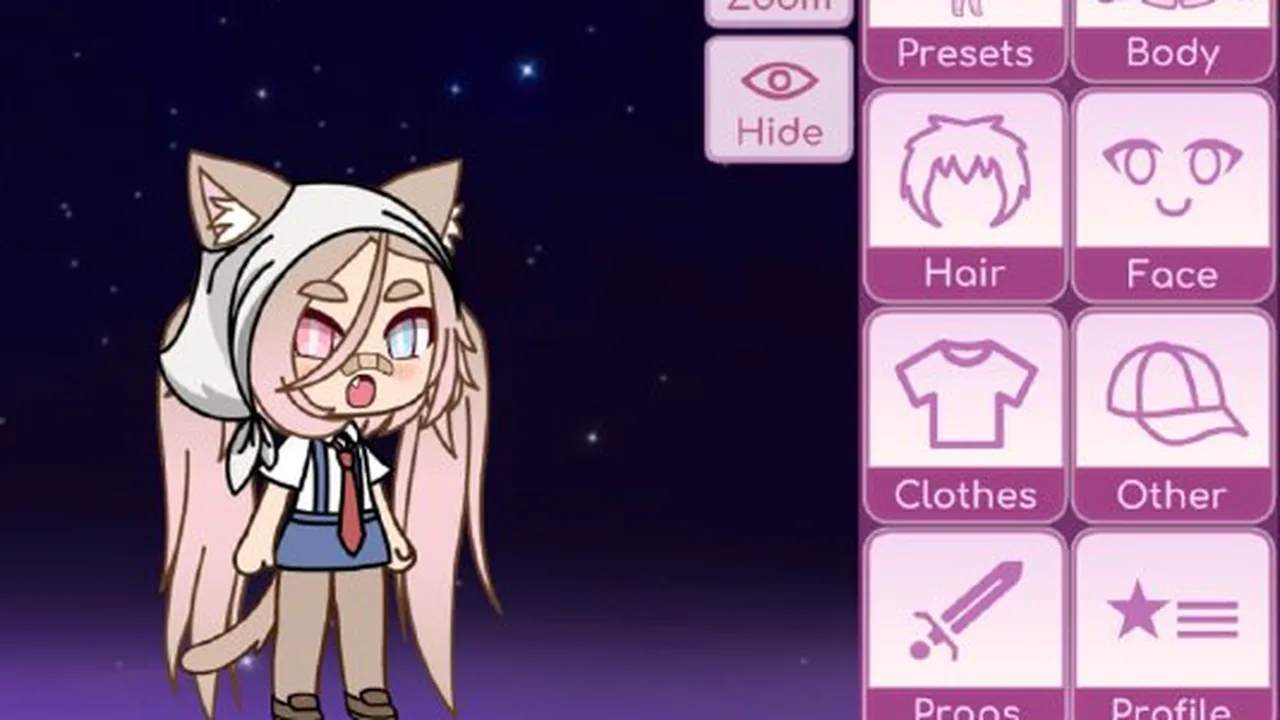

What You Can Import
Chibichu app lets you load a PNG as clothing, hair, an accessory, or a face detail. The app keeps imported images in its own resource area, so a piece you import once stays available for later characters without importing it again. The Outline colours and Accessories guides cover the neighbouring steps.
Keep imports tidy. Name each file for what it is before importing, since a resource area full of unnamed files slows every later session and makes the piece you need hard to find.
Fitting an Import
After importing, adjust the placement and size of the piece with the same part controls as built-in parts. Hair imports need the most care: position and size decide whether the piece frames the face or swallows it. Check the piece at small size too, since Studio scenes shrink everything.
Limits
Imported pieces are only as good as the image behind them. A low-resolution PNG looks soft next to crisp built-in parts, and a busy pattern fights the outline colours. Start with clean, simple images and let the editor do the rest.